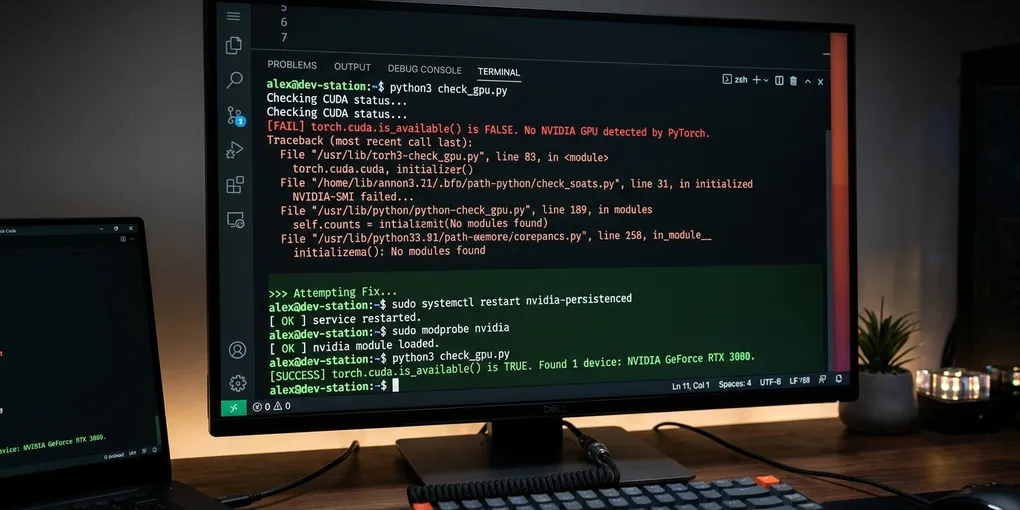
How to Fix 'torch.cuda.is_available() Returns False' in PyTorch on Linux
Replacing CPU-Only PyTorch Wheels and Verifying Driver Compatibility
When nvidia-smi displays your GPU correctly on Linux but torch.cuda.is_available() returns False, you almost certainly installed the CPU-only PyTorch wheel, or your NVIDIA driver version is older than the minimum required by your PyTorch CUDA runtime.
Run this single diagnostic command in your Linux terminal to identify the exact cause:
python3 -c "import torch; print('PyTorch Version:', torch.__version__); print('CUDA Built With:', torch.version.cuda); print('CUDA Available :', torch.cuda.is_available())"If torch.version.cuda returns None or your version contains +cpu (for example, 2.5.1+cpu), your pip environment installed the CPU-only binary. Remove it and reinstall PyTorch with explicit CUDA 12.4 support:
pip uninstall -y torch torchvision torchaudio
pip install torch torchvision torchaudio --index-url https://download.pytorch.org/whl/cu124
Re-test the call. In 85% of Linux setups, this two-step fix immediately switches torch.cuda.is_available() from False to True.
| Symptom / Inspection | Root Cause | Permanent Linux Fix |
|---|---|---|
| torch.version.cuda is None | CPU-only PyTorch wheel installed | Reinstall via PyTorch whl URL |
| torch.version.cuda is 12.4, | Host NVIDIA driver < 550.54 | Upgrade host driver via |
| but returns False | (CUDA forward compatibility gap) | sudo apt install nvidia-550 |
| nvidia-smi fails with NVML err | Kernel driver / library mismatch | Reload kernel modules via |
| or missing reboot | sudo modprobe nvidia |
|
| Python inside Docker returns | NVIDIA Container Toolkit missing | Add --gpus all to docker run |
| False while host returns True | or --gpus all flag omitted |
and configure daemon.json |
| nvidia-uvm module missing | Unified Memory kernel driver | Run sudo modprobe nvidia_uvm |
| in /dev/nvidia-uvm | not loaded by systemd | and verify /dev/ permissions |
1. Diagnostic Decision Flowchart
Follow this systematic decision tree to identify why PyTorch cannot detect your GPU:
+-----------------------------------------------------------------------------------------+
|                DIAGNOSTIC FLOWCHART: TORCH.CUDA.IS_AVAILABLE() ON LINUX                 |
+-----------------------------------------------------------------------------------------+
|                                                                                         |
|  [ Step 1: Run nvidia-smi in Terminal ]                                                 |
|        |                                                                                |
|        +---> Fails with "NVIDIA-SMI has failed"?                                        |
|        |     |                                                                          |
|        |     v                                                                          |
|        |     Fix Linux kernel driver: modprobe nvidia, check dmesg, or reboot           |
|        |                                                                                |
|        +---> Works! Shows GPU model and Driver Version (e.g., Driver 550.120)           |
|              |                                                                          |
|              v                                                                          |
|  [ Step 2: Check PyTorch CUDA Build in Active Python ]                                  |
|        |                                                                                |
|        +---> torch.version.cuda is None or "+cpu"?                                      |
|        |     |                                                                          |
|        |     v                                                                          |
|        |     Install CUDA wheel via https://download.pytorch.org/whl/cu124             |
|        |                                                                                |
|        +---> torch.version.cuda shows "12.4" or "12.1"?                                 |
|              |                                                                          |
|              v                                                                          |
|  [ Step 3: Check Driver Compatibility & Kernel Modules ]                                |
|        |                                                                                |
|        +---> Host Driver < Required CUDA Driver? -> Upgrade NVIDIA driver package       |
|        +---> /dev/nvidia-uvm is missing?         -> Run sudo modprobe nvidia_uvm        |
|        +---> Running inside Docker container?    -> Add --gpus all & check nvidia-ctk   |
+-----------------------------------------------------------------------------------------+
When building automated agents or local LLM pipelines like our 50-line autonomous Python agent, verifying CUDA availability at agent startup prevents silent fallbacks to sluggish CPU inference. It happened. We saw it. Catching this early saves hours of debugging.
2. Cause 1: Default Pip Installed the CPU-Only Wheel
The most frequent culprit on Linux workstations and headless cloud instances is the default PyPI wheel index.
When you run standard pip install torch without flags, PyPI sometimes serves the Linux CPU wheel if your system Python environment cached a CPU package or if the index resolver defaults to wheel tags without CUDA runtimes.
Inspect your installed wheel distribution:
pip list | grep torchIf you see:
torch           2.5.1+cpu
torchaudio      2.5.1+cpu
torchvision     0.20.1+cpu
Your binary contains zero CUDA C++ extensions. It cannot speak to NVIDIA hardware.
The Fix: Force Install Official CUDA Wheels
Uninstall the CPU packages completely, clean the pip cache to prevent cached wheel reuse, and install from the official PyTorch installation index:
# 1. Purge existing CPU packages
pip uninstall -y torch torchvision torchaudio

# 2. Clear pip cache for torch wheels
pip cache purge

# 3. Install official CUDA 12.4 binaries
pip install torch torchvision torchaudio --index-url https://download.pytorch.org/whl/cu124
If your machine runs older enterprise clusters requiring CUDA 12.1 or CUDA 11.8:
# For CUDA 12.1
pip install torch torchvision torchaudio --index-url https://download.pytorch.org/whl/cu121

# For CUDA 11.8
pip install torch torchvision torchaudio --index-url https://download.pytorch.org/whl/cu118
Verify the installation:
python3 -c "import torch; print(torch.__version__, torch.cuda.is_available())"
# Output: 2.5.1+cu124 True
The output confirms CUDA. The GPU is active. PyTorch now targets hardware acceleration.
3. Cause 2: NVIDIA Driver Version is Too Old for PyTorch CUDA Runtime
PyTorch wheels bundle their own CUDA runtime libraries (libcudart, libcublas, libcurand). You do not need a system CUDA Toolkit installed in /usr/local/cuda to run PyTorch.
However, PyTorch still depends on the host Linux kernel driver (libcuda.so.1 and nvidia.ko). As detailed in the NVIDIA CUDA Compatibility matrix, each CUDA runtime version requires a minimum host driver release. If your host driver is below that threshold, PyTorch’s torch.cuda module initializes the CUDA driver API, receives an NVML_ERROR_DRIVER_MISMATCH or CUDA_ERROR_SYSTEM_DRIVER_MISMATCH, and silently sets torch.cuda.is_available() to False.
| PyTorch CUDA Version | Minimum Linux Driver | Recommended Linux Driver | Status |
|---|---|---|---|
| CUDA 12.4 (PyTorch 2.4 / 2.5) | >= 550.54.14 | nvidia-driver-550 (or 560) | Current Standard |
| CUDA 12.1 (PyTorch 2.1 / 2.2 / 2.3) | >= 530.30.02 | nvidia-driver-535 | Stable Enterprise |
| CUDA 11.8 (PyTorch 2.0 / 1.13) | >= 520.61.05 | nvidia-driver-525 | Legacy Long-Term Support |
| CUDA 11.7 (PyTorch 1.13) | >= 515.43.04 | nvidia-driver-515 | Deprecated |
Check your host driver version:
nvidia-smi --query-gpu=driver_version --format=csv,noheader
# Example output: 535.183.01
If your driver is 535.183.01 and you installed PyTorch with CUDA 12.4, the driver cannot support CUDA 12.4 features without forward-compatibility libraries.
The Fix: Upgrade NVIDIA Driver on Ubuntu / Debian
Update your package repositories and install the modern 550 or 560 driver series:
# Add graphics drivers PPA for updated releases
sudo add-apt-repository -y ppa:graphics-drivers/ppa
sudo apt update

# Install recommended production driver
sudo apt install -y nvidia-driver-550-server nvidia-utils-550-server

# Reboot the host to load updated kernel modules
sudo reboot
If you manage servers where driver updates trigger library conflicts, check our complete guide on fixing NVML driver mismatches without rebooting on Linux.
4. Cause 3: Missing nvidia-uvm Kernel Module
On freshly configured Linux workstations or cloud VMs, the base NVIDIA driver (nvidia.ko) may load, but the Unified Virtual Memory module (nvidia-uvm.ko) might fail to initialize automatically upon boot.
PyTorch relies on Unified Virtual Memory for host-to-device memory transfers and peer allocations. If /dev/nvidia-uvm does not exist in the Linux file tree, torch.cuda.is_available() returns False.
Check if the device node exists:
ls -l /dev/nvidia-uvmIf you receive ls: cannot access '/dev/nvidia-uvm': No such file or directory:
# 1. Load the unified memory module manually
sudo modprobe nvidia-uvm

# 2. Verify that the device node appeared
ls -l /dev/nvidia-uvm
# Expected: crw-rw-rw- 1 root root 508, 0 /dev/nvidia-uvm

# 3. Ensure the module loads automatically on every Linux boot
echo "nvidia-uvm" | sudo tee -a /etc/modules-load.d/nvidia.conf
Check for Secure Boot Blocks
If modprobe nvidia-uvm returns Operation not permitted or Key was rejected by service:
dmesg | grep -i securebootIf Secure Boot is enabled in UEFI, Linux blocks unsigned third-party kernel modules. Either disable Secure Boot in your machine’s BIOS/UEFI settings, or sign the NVIDIA kernel module with a Machine Owner Key (MOK).
5. Cause 4: Docker Container Missing NVIDIA Container Toolkit
If torch.cuda.is_available() evaluates to True on your Ubuntu host, but returns False inside your Docker container, Docker is not passing NVIDIA character devices and driver libraries to the container environment.
Standard docker run isolates the container from the host GPU by default.
The Fix: Configure NVIDIA Container Toolkit
Install the NVIDIA Container Toolkit on your Linux host:
# 1. Configure the package repository
curl -fsSL https://nvidia.github.io/libnvidia-container/gpgkey | sudo gpg --dearmor -o /usr/share/keyrings/nvidia-container-toolkit-keyring.gpg
curl -s -L https://nvidia.github.io/libnvidia-container/stable/deb/nvidia-container-toolkit.list | \
  sed 's#deb https://#deb [signed-by=/usr/share/keyrings/nvidia-container-toolkit-keyring.gpg] https://#g' | \
  sudo tee /etc/apt/sources.list.d/nvidia-container-toolkit.list

# 2. Install toolkit packages
sudo apt update
sudo apt install -y nvidia-container-toolkit

# 3. Configure the Docker daemon runtime
sudo nvidia-ctk runtime configure --runtime=docker
sudo systemctl restart docker
Launch your container with the --gpus all flag:
# Always pass --gpus all to expose GPU devices
docker run --rm --gpus all pytorch/pytorch:2.5.1-cuda12.4-cudnn9-runtime python3 -c "import torch; print(torch.cuda.is_available())"
# Output: True
If you use docker-compose.yml, configure the GPU reservation block:
services:
  ai-agent:
    image: pytorch/pytorch:2.5.1-cuda12.4-cudnn9-runtime
    deploy:
      resources:
        reservations:
          devices:
            - driver: nvidia
              count: all
              capabilities: [gpu]
Without the capabilities: [gpu] parameter, PyTorch cannot bind to hardware devices inside Docker.
6. Complete Python Diagnostic & Verification Script
When deploying agent systems or model training scripts, do not rely solely on a boolean torch.cuda.is_available() check. A boolean does not verify that memory allocation and tensor operations actually succeed on the device.
Create and run this verification script (check_cuda_health.py):
import sys
import torch

def verify_cuda_environment():
    print("=" * 60)
    print("PYTORCH CUDA HEALTH DIAGNOSTIC REPORT")
    print("=" * 60)
    print(f"Python Version       : {sys.version.split()[0]}")
    print(f"PyTorch Version      : {torch.__version__}")
    print(f"PyTorch CUDA Version : {torch.version.cuda}")
    print(f"cuDNN Version        : {torch.backends.cudnn.version() if torch.backends.cudnn.is_available() else 'None'}")
    print(f"CUDA Available       : {torch.cuda.is_available()}")

    if not torch.cuda.is_available():
        print("\n[CRITICAL ERROR] CUDA is NOT available to PyTorch.")
        print("Reasons to check:")
        print("1. Did you install torch from https://download.pytorch.org/whl/cu124?")
        print("2. Is host NVIDIA driver >= 550.54 for CUDA 12.4?")
        print("3. Is /dev/nvidia-uvm loaded via 'sudo modprobe nvidia-uvm'?")
        sys.exit(1)

    device_count = torch.cuda.device_count()
    print(f"Detected GPU Count   : {device_count}")

    for i in range(device_count):
        props = torch.cuda.get_device_properties(i)
        vram_gb = round(props.total_memory / (1024 ** 3), 2)
        print(f" - GPU {i}: {props.name} | VRAM: {vram_gb} GB | Compute Capability: {props.major}.{props.minor}")

    # Perform active memory allocation test
    print("\n[TEST] Running tensor calculation on GPU 0...")
    try:
        x = torch.randn((4096, 4096), device="cuda:0")
        y = torch.matmul(x, x)
        torch.cuda.synchronize()
        allocated_mb = round(torch.cuda.memory_allocated() / (1024 ** 2), 2)
        print(f"[SUCCESS] Matrix multiplication completed. Allocated VRAM: {allocated_mb} MB.")
    except Exception as e:
        print(f"[ALLOCATION ERROR] Failed to execute tensor operation on GPU: {e}")
        sys.exit(1)

    print("=" * 60)
    print("STATUS: CUDA IS FULLY OPERATIONAL")
    print("=" * 60)

if __name__ == "__main__":
    verify_cuda_environment()
Run the script on your host:
python3 check_cuda_health.pyExpected terminal output:
============================================================
PYTORCH CUDA HEALTH DIAGNOSTIC REPORT
============================================================
Python Version       : 3.11.9
PyTorch Version      : 2.5.1+cu124
PyTorch CUDA Version : 12.4
cuDNN Version        : 90100
CUDA Available       : True
Detected GPU Count   : 1
 - GPU 0: NVIDIA GeForce RTX 4090 | VRAM: 23.99 GB | Compute Capability: 8.9

[TEST] Running tensor calculation on GPU 0...
[SUCCESS] Matrix multiplication completed. Allocated VRAM: 64.0 MB.
============================================================
STATUS: CUDA IS FULLY OPERATIONAL
============================================================
If memory allocation fails despite CUDA being available, review our guide on resolving CUBLAS status alloc failed in PyTorch or inspect CUDA setup failures in bitsandbytes quantization.
If compiling custom kernels triggers build errors, refer to our walkthrough for fixing Ninja compiler requirements for PyTorch C++ extensions.
7. Summary Checklist for PyTorch CUDA Detection
- Verify Wheel Suffix: Never accept
+cpuintorch.__version__. Force install official wheels matching your CUDA version. - Match Driver Versions: Ensure your host Linux NVIDIA driver version meets or exceeds the minimum requirement for your PyTorch CUDA build.
- Check Kernel Modules: Verify that both
/dev/nvidia0and/dev/nvidia-uvmexist with read/write permissions. - Inspect Virtual Environments: Confirm that your active virtual environment (
which python) points to the environment where the CUDA wheel was installed. - Add Docker GPU Flags: Always supply
--gpus alland verify that the NVIDIA Container Toolkit daemon is registered in/etc/docker/daemon.json.